
What Are Google Analytics Dashboards? – Digital Marketing Madness


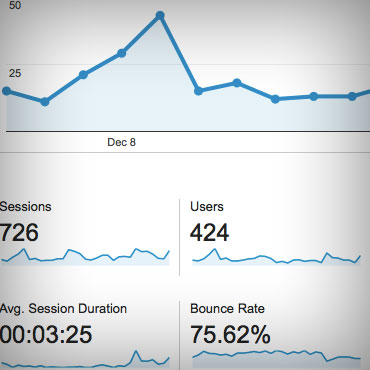
If you’re like me, sometimes I stumble across a report when I’m clicking around in Google Analytics and think “This is really useful. This is exactly what I need.” Google Analytics actually has a little button titled “Add to Dashboard,” in the top left hand corner of any report view you’re looking at. You can click that, and it’ll drop it into that dashboard, so you’ll be able to find it again.
It can be really hard to get back there, or sometimes you spend 10 minutes applying these different filters, and things like that, to just get to that data that you want to see. You don’t want to have to spend that time all over again, the next time that you want to see that data. You want to be able to just go straight to it.
By adding that to a dashboard, you could just go back to that report much easier.
You could have a social media dashboard, that’s strictly about referral data from your social media channels. You’ve organized a lot of reports into a one screen, and get a snapshot view of what you need to know.
How to Set Up Google Analytics Dashboards
How do you go about setting up, a Google Analytics dashboard? You mentioned going to a report, and then clicking Add to Dashboard. What’s the first step?
We’ve talked a little bit about that. The bottom line is you should ask your digital marketing agency, what metrics you should be tracking based on what your goals are, and what you should include in your dashboard. Setting up a Google Analytics dashboard, is not complicated.
There’s the way we talked about, and then there’s also when you go into reporting, you click Dashboards, and then click New Dashboard – very easy. You have two options there, a Starter Dashboard, which gives you a readymade Google Analytics generated dashboard.
Your other option would be Blank Canvas. If you click that, a window pops up that lets you set the parameters, for the first chart or graph on your dashboard.
That’s what Google Analytics calls a widget. There are two things that I wanted to tell you about widgets that I learned. The first is that the dashboard will display all the data in all the widgets you create according to the date range that you’ve already set in the top right hand corner.
I’ve made this mistake several times, where I think I’m looking at the right data, and realize I’ve since changed the date in the top right hand corner, and it’s changed some of the dates in my dashboard. Just be aware when you’re creating your widgets, you’re looking at your dashboards, that you’re always checking the date setting up there.
The other thing I wanted to share was that once you create your dashboard, a window will popup called “Add a Widget.” After you’ve created that dashboard, you can add any widget to it anytime by clicking the words in the top left hand corner of the dashboard called “Add Widget.”
The other way is the one we talked about before, which is you’re in Google Analytics looking at a report, and you can just add that to your dashboard. Those are two important points about how to set up your Google Analytics dashboard that I’ve learned. It’s complicated but it’s totally doable.
Best Practices for Using Google Analytics Dashboards
The other one is to be aware of what filters are in place on your Google Analytics profile. We have some clients that don’t have any filters or they don’t have the right filters. When they come on board with us, we help them get setup with that. You want to filter out your own internal traffic, you want to filter out…try as best as you can to filter out spam traffic.
Once you have those filters in place, your dashboard becomes so much more useful because you’re looking at really good data.
That’s something else you should be aware of. If you dig into your Google Analytics account, and some of the data doesn’t make sense, go up to the admin’s screen and check what filters are there because that could be a part of the problem.


Leave a Comment!